
No! An email address can only be used once as a username for the portal. If the same person is responsible for managing several companies or CareFlex IDs as an administrator, we recommend that your company’s IT department set up so-called ‘alias email addresses’.
Provided that a valid employee email address is provided, an email invitation to the CareFlex employee portal can be sent. Arrangements for this must be made on a case-by-case basis via kontakt@careflexchemie.de. If a valid employee email address is not provided, the responsibility for sending the invitation lies with the company.
The timeline provides the answers:
You can find an overview of all HR incidents in this document:
The CareFlex staff ID is assigned automatically by the system and no further input is required.
Yes! In principle, employees can be registered from the start of their employment. Should the company opt for a waiting period, the effective date can be reported separately.
The entitlement to benefits always takes effect on the 1st of the month following the incident.
Potal Administration x
In order to create employees in the company portal, the administrator must first be assigned the required roles (permissions) via user management. To create an employee, for example, the role ‘HR’ or ‘HR (Managers)’ must be assigned; see also the company portal roles concept:
The site coordinator is an employee of CareFlex Chemie. They will be assigned to your company and will act as your on-site point of contact going forward.
The ‘Corporate Portal’ role concept provides an overview of the roles used and their associated functions:
Please submit a support request by email to kontakt@careflexchemie.de, including the relevant CareFlex IDs and, in particular, specifying which CareFlex ID should report to which sub-CareFlex ID.
There are essentially two options available for data submission: manual entry via the portal or via interface solutions. Further details can be found in the decision-making guide and the interface descriptions.
In theory, it is indeed possible to populate a CSV file manually. However, it makes more sense for the HR system to generate this CSV file. In either case, however, the CSV file is NOT ‘uploaded’ by the company, but is transferred to the portal via specialised software that needs to be installed.
Generally speaking, no! However, depending on the circumstances, a bespoke solution may be discussed and offered via our technical service provider.
Manual entry is carried out in the CRM/Employees section via ‘+ Create new employee’. If this function is not available, there are three possible reasons:
- You have not assigned the “HR” or “HR (Management)” role to the user; see also the Corporate Portal Role Concept.
- You requested automatic transfer of the relevant data during registration.
- During registration, you specified that your employees are managed exclusively by another organisation.
Yes, initially all staff members are registered as ‘NEW’.
AES256 for file encryption, plus transfer via an HTTPS connection on port 443.
- Log in to the company portal. You will need the ‘Technical’ role.
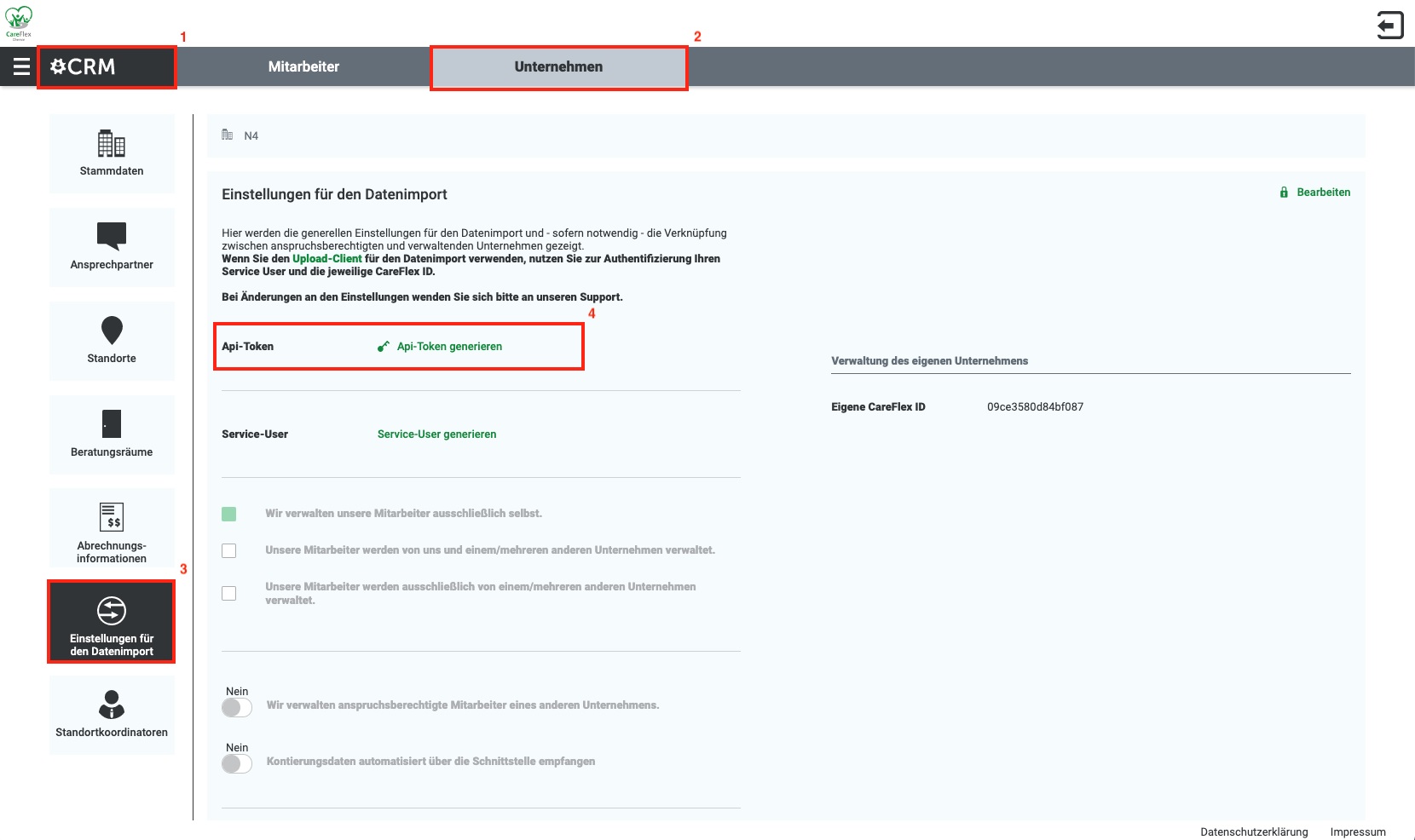
- Navigate to CRM (1), Company (2), Data Import Settings (3)
- Generate a new API token by clicking on the relevant button (4). Please note that older API tokens will become invalid when a new one is generated.
You can send a notification of changes to staff details as often as you like. There is no longer any need to send blank notifications. If there are no changes in a given month, you do not need to do anything.
You can specify during the registration process whether you wish to submit reports manually via the portal or via an interface. You do not need to specify which type of interface you are using. The interface will configure itself automatically when you submit your first report.
An access token is valid for 12 hours. The exact validity period is provided in the response.
Access tokens can be generated several times in succession. However, generating a new access token renders the previous access tokens invalid. You can therefore generate a new access token for each message and do not need to archive it.
Due to legal requirements, the tax identification number may not be used for the intended purpose.
Technical errors are not currently being reported. A log interface is currently being developed, which will allow you to check retrospectively whether an error has occurred and, if so, what it was.
A REST interface for error logging will be available very soon. The data can also be viewed via a browser interface (Swagger UI).
The URL for the test system is: https://ingress-careflex-staging.n4group.eu/rest/swagger-ui/
In theory, it is indeed possible to populate a CSV file manually. However, it makes more sense for the HR system to generate this CSV file. In either case, however, the CSV file is NOT ‘uploaded’ by the company, but is transferred to the portal via specialised software that needs to be installed.
Generally speaking, no! However, depending on the circumstances, a bespoke solution may be discussed and offered via our technical service provider, N4.
This could lead to data inconsistencies, so unfortunately this option is not possible. It is, however, possible to change this at a later date without any problems.
The separator can be defined, but must correspond to one of the options provided. We recommend using a semicolon or a pipe. For other separators, please consult your technical contact at Careflex regarding the integration. The separator must be configured once by the CareFlex administrator at the start of the set-up process.
For staging
careflex-staging-xfiles.de-hamburg-4.s3.xws.x-ion.de
staging.unternehmen.careflexchemie.de
Port 443
For production
careflex-production-xfiles.de-hamburg-4.s3.xws.x-ion.de
unternehmen.careflexchemie.de
Port 443
To upload your files, you can either use the synchronisation tool (see the ‘SyncTool’ section) or upload them manually to the portal via a browser application.
To do this, please log in at https://api.unternehmen.careflexchemie.de/ using your service user account and then enter your CareFlex ID and API token. You can then select the file you wish to upload.
In the case of linked companies, please ensure that you enter the correct CareFlex ID for the company you are reporting on, as otherwise the data will be assigned to the wrong company.
You can find a detailed explanation in the current CSV interface specification.
AES256 is used to encrypt the file, and it is also transferred via an HTTPS connection on port 443.
The SyncTool can only be used on Windows.
You must provide a CareFlex ID and a path to the folder you wish to monitor.
At present, CSV files can only be transferred via SyncTool. Our technical service provider offers alternative methods for transferring files.
As things stand, that is not possible.
In this case, we would recommend that you use Seeburger or a similar tool to import a CSV file at the input stage and then send the data to the interface via SOAP or REST at the output stage.
The programme must be set up and run under the same Windows user account; otherwise, the encrypted password cannot be decrypted in the Windows Registry.
The company you are trying to connect to does not exist, or the service user/service user secret are incorrect. If the error message indicates that you are in ‘STAGING MODE’, have you generated the correct data in the staging portal as well? Data from the production system cannot be used on the staging system, and vice versa.
Have you already created an API token in the portal? This needs to be created ‘only’ for the CSV interface; you won’t need it for anything else later on.
Another possibility is that the format of various fields is incorrect. Typical errors occur with the date (format “2020-01-01”) or with gender (“f” instead of “w”).
In collaboration with an external partner, N4 provides two different SAP components for a fee. The first component handles the generation of HR transactions. The second communicates directly with the SAP system and transmits updates to master data records and other HR transactions to the company portal.
The trial phase will begin in mid-April, so that the scheme can be launched with the pilot companies in May.
Please contact our SAP team at careconnect-sap@n4.de.
Once the CareConnect SAP components have been installed, a small amount of time is initially required to set them up before they are fully operational.
We currently offer specific solutions for SAP HCM, Datev and customised exports for all kinds of HR systems. You can find more information on this in the ‘CareConnect’ brochure. We are in contact with other HR software providers such as ADP, but no solutions have yet been developed for these systems.
If ‘True’ is selected for ‘Management’, an HR staff member requires the ‘HR (Management)’ permission to view the relevant employee’s details in the portal.
What do you expect to see in this field? Just the location name, or the full address as well?
In principle, it is sufficient to provide the location name. However, providing the full address is useful for determining the consultation address.
What is this value used for?
The employee’s location is primarily important for answering the question ‘Where does the employee’s consultation take place?’. Accordingly, for an employee who cannot be permanently assigned to a specific location, the location should be set to the place where that employee is to be consulted.
An employee’s location is primarily important in determining ‘Where will the consultation with the employee take place?’. Accordingly, in the case of an employee who cannot be assigned to a specific location, the location should be set as the place where that employee is to be consulted.
This refers to the actual date on which the record was amended. For example, when the person processing the record entered the new surname. The date on which the change was made is required.
If the value does not have a ‘valid from’ date and is therefore valid from the time of the change, does this field also need to be filled in? (In which case, it would be the same as ‘createdAt’)
Yes, this field is mandatory and must be populated with the effective date, which may correspond to the ‘createdAt’ if the latter is not available.

0511 7631-893 (Customer Service Centre)
